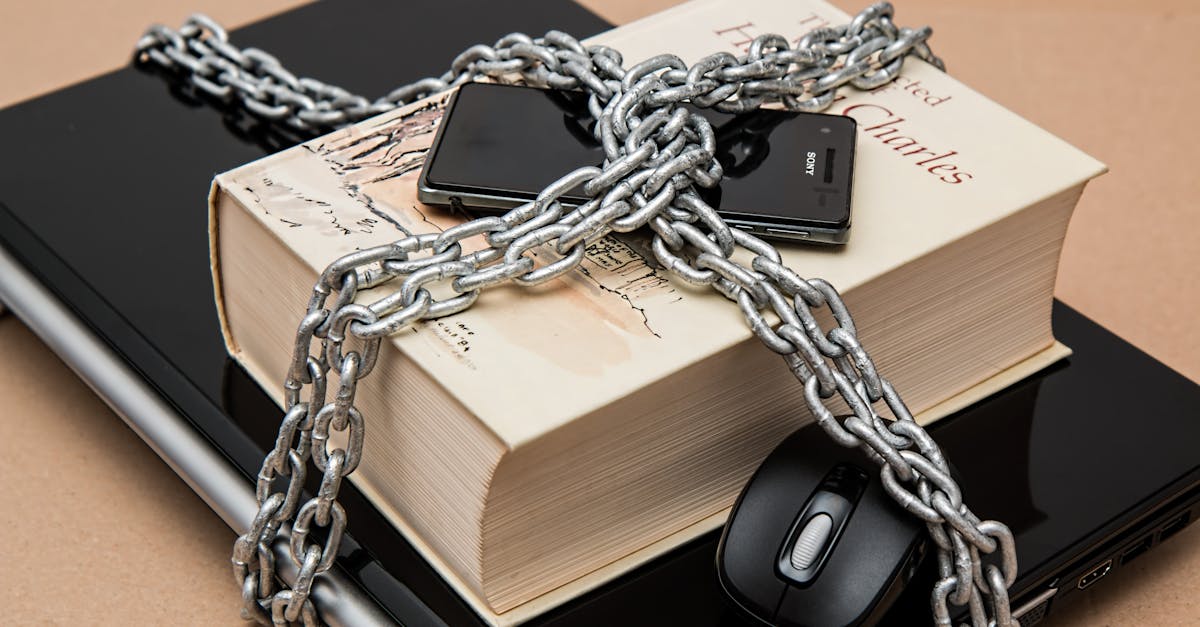
Secure Your Laptop from Prying Eyes in Public
You’re at your favorite coffee shop, deeply engrossed in a sensitive work document or personal email. Suddenly, you catch a glimpse of someone in your peripheral vision, their eyes lingering a little too long on your screen. That cold jolt of realization – a stranger has just seen something meant only for your eyes – is an uncomfortable experience I’ve lived through more times than I care to admit. It’s not just about guarding classified information; it’s about protecting your financial data, personal conversations, and even your peace of mind.
In our increasingly mobile world, working and browsing in public spaces is a common convenience. But this convenience comes with a rarely discussed vulnerability: visual hacking. This isn’t about sophisticated cyber-attacks; it’s about simple, opportunistic glances from people around you. Many assume their privacy is only at risk from digital intrusions, overlooking the easily observable screen in front of them. What I’ve found, through years of working remotely in various public settings, is that a layered approach to physical screen security is far more effective than hoping no one notices.
Key Takeaways
- Prioritize a physical privacy filter for instant, effective screen obscurity from side angles.
- Adjust screen brightness to the lowest comfortable level to reduce visibility to onlookers.
- Position yourself strategically in public to minimize foot traffic behind and beside your setup.
- Adopt ‘shoulder surfing’ awareness by routinely checking your surroundings for suspicious activity.
- Configure your laptop’s screen lock to activate quickly, preventing unauthorized access when you step away.
Use a Physical Privacy Filter First, Always
When I first started working more from coffee shops and co-working spaces, I thought I was being clever by just dimming my screen. The truth? That does almost nothing to deter someone truly interested in what you’re doing. The game-changer for me, and the number one recommendation I give anyone, is a physical privacy filter. This isn’t a suggestion; it’s an essential piece of equipment if you ever open your laptop in public.
Think of it as a one-way mirror for your screen. From your direct perspective, your screen appears normal, maybe slightly dimmer. But for anyone looking from an angle greater than 30 or 60 degrees, the screen is completely black. This isn’t a software trick; it’s a physical film using micro-louver technology, similar to how vertical blinds work. I made the mistake of thinking these were just for corporate espionage. They are for anyone who values their privacy. After investing in a high-quality filter that magnetically attaches (so I can remove it easily when I’m alone), the difference was immediate and profound. No more lingering glances, no more feeling exposed. I literally saw people try to peek and then just give up. It’s an investment, usually $30-$60, but it pays for itself in peace of mind and data security.
Master the Art of Strategic Screen Dimming
While a privacy filter is your first line of defense, dimming your screen is a crucial secondary measure that complements it. Many people dim their screen to save battery, which is a good habit. But for privacy, it’s about making your screen less of a beacon for wandering eyes. A bright screen, even with a privacy filter, can still be more noticeable, especially in dimmer environments. The mistake I often see is users dimming their screen slightly, thinking it’s enough.
What changed everything for me was finding the absolute lowest brightness setting that was still comfortable for my own viewing. This isn’t about an arbitrary percentage; it’s about calibrating it to the ambient light around you. In a brightly lit cafe, you might need a bit more brightness than in a dimly lit airport lounge. The goal is to reduce the light emitted from your screen as much as possible without causing eye strain for yourself. This simple act drastically reduces the ‘pull’ factor your screen has for passersby. Coupled with a physical filter, a strategically dimmed screen becomes a black box to anyone not sitting directly in front of it. On my MacBook Pro, I find that usually around 40-50% brightness is my sweet spot in most public settings, but it’s something I actively adjust depending on the environment.
Choose Your Seat Like a Cybersecurity Expert
Where you sit in a public space can be as important as what you put on your screen. Most people grab the first available seat, often near an outlet or window, without considering the flow of traffic or potential viewing angles. This is a huge oversight. In my experience, a little intentionality in seating selection can drastically reduce your vulnerability.
Look for a seat with a solid wall behind you. This completely eliminates the risk of ‘shoulder surfing’ from directly behind. Beyond that, consider corners or booths that naturally create visual barriers. Seats facing a wall, or with your back to a less-trafficked area, are ideal. Avoid sitting in the middle of a room, facing an open area, or near busy walkways or entrances where a constant stream of people can easily glance at your screen. I often choose a table pushed against a wall, facing into a corner, with my back to the least active section of the room. This simple, free maneuver means that even if someone wanted to peek, they’d have to make a very deliberate and obvious effort, which is usually enough to deter them. Sometimes this means waiting a few extra minutes for an ideal spot, but it’s always worth it.
Cultivate ‘Shoulder Surfing’ Awareness
Even with the best privacy filters and strategic seating, a proactive mindset is your final, critical layer of defense. This involves regularly scanning your surroundings, not in a paranoid way, but in an aware, confident manner. Most people become so absorbed in their screens that they forget to check their physical environment. This is the mistake I see most often.
Make it a habit to glance up every few minutes. A quick sweep of your immediate vicinity – the people at nearby tables, anyone standing or walking past – can tell you a lot. Are people looking in your direction? Is anyone standing unusually close? Your goal isn’t to be suspicious of everyone, but to be an active observer of your personal space. If I notice someone looking too intently, a direct but brief eye-contact often communicates ‘I see you’ and is enough to make them look away. If I still feel uncomfortable, I might take a short break, close my laptop, or even relocate. This active awareness is a skill, and like any skill, it improves with practice. It shifts you from being a passive target to an active guardian of your own privacy.
Implement Quick Screen Lock Protocols
Life in public spaces is unpredictable. You might need to step away for a moment – to grab another coffee, answer a call, or use the restroom. The crucial mistake many users make is leaving their laptop screen unlocked, even for a few seconds. This is an open invitation for someone to glance at your desktop, or worse, quickly access your open applications. Your privacy filter is useless if someone is sitting directly in your seat.
What changed everything for me was configuring my laptop’s screen lock to activate within seconds of inactivity, and consistently using a manual lock shortcut the moment I step away. On macOS, I use Control + Command + Q to instantly lock the screen. On Windows, it’s Windows Key + L. Make these shortcuts muscle memory. Furthermore, adjust your system settings so that your screen automatically locks after a very short period of inactivity – I set mine to 30 seconds. This combination means that if you’re ever distracted or forget to manually lock, your device will still be protected. This seemingly small habit is a massive safeguard against opportunistic access and ensures that even your briefest absence doesn’t turn into a privacy breach.
Frequently Asked Questions
How does a privacy filter work if it’s not a software setting?
Privacy filters use micro-louver technology, which are tiny, almost microscopic vertical slats embedded in the film. These slats only allow light to pass through at a direct angle, effectively blocking the view for anyone looking at the screen from a side angle, typically beyond 30 to 60 degrees. It’s a physical solution, not a digital one.
Can people still see my screen if they stand directly behind me with a privacy filter on?
Yes, a standard privacy filter primarily protects against side-angle viewing. If someone is standing directly behind you, they will likely still be able to see your screen. This is why strategic seating (back against a wall) and cultivating shoulder-surfing awareness are crucial complements to a privacy filter.
Will dimming my screen significantly impact my laptop’s battery life?
Yes, reducing screen brightness is one of the most effective ways to extend your laptop’s battery life. This is a beneficial side effect of dimming your screen for privacy, as lower brightness consumes less power, allowing you to work longer in public spaces without needing an outlet.
Is it obvious that I’m using a privacy filter?
When viewed directly, a privacy filter might make your screen appear slightly dimmer or have a very subtle textured look compared to an unfiltered screen. However, from the side, it’s typically completely black. It’s not generally considered ‘obvious’ or distracting to you, but the effect it has on side-viewers is very clear.
What if I work in a collaborative environment and need others to see my screen?
Privacy filters are designed for individual privacy. If you frequently need to share your screen with colleagues, consider a magnetic or removable privacy filter that can be easily detached when you’re in a collaborative setting and reattached when you need privacy. Some workplaces even provide them for shared devices.
Securing your laptop from prying eyes in public isn’t about being paranoid; it’s about being prepared and proactive. By implementing these layered strategies – from the physical barrier of a privacy filter to mindful seating and quick screen locks – you transform your public workspace into a private sanctuary. Don’t let the convenience of working anywhere come at the cost of your personal and professional privacy. Start with one change today and build your layers of protection. Your peace of mind is worth the effort.
Written by Maya Singh
Home organization and productivity
A former librarian and efficiency expert, Maya excels at curating information into streamlined, actionable advice.
You Might Also Like

A Practical Checklist for Managing Email Overload Without Constant Stress
Tame your overflowing inbox and reclaim your peace of mind with this actionable checklist for email management, reducing stress and boosting productivity.
Cloud Versus Local Storage: Where Your Digital Assets Truly Thrive
Uncover where your digital assets truly thrive with cloud vs. local storage. Maya Singh shares non-obvious insights on security, access, and control.
Digital Journal Versus Notebook: How Each Shapes Memory and Engagement
Explore how digital and physical journaling impact memory and engagement, offering a unique perspective on which method truly benefits your daily reflection.